Tutorial 8 – Synergy Driven Treatment Optimization Tutorial
Tutorial Developers: Robert Salati and B.J. Fregly, Rice Computational Neuromechanics Lab, Rice University
Last Updated: 11/4/2025
The Treatment Optimization toolset generates predictive simulations of a patient’s post-treatment movement function by optimizing specified treatment design parameters. The toolset consists of three tools designed using a “theme and variation” approach, where the tools are intended to be used in a specific order, with each tool serving a distinct purpose. Each tool uses the GPOPS-II direct collocation optimal control software for MATLAB and maintains a consistent structure for data inputs, problem design, cost function terms, constraint terms, and outputs, with variations.
This second section of the treatment optimization tutorial will cover the process of running a “Synergy Driven” Tracking Optimization (TO), Verification Optimization (VO), and Design Optimization (DO) in which joints are actuated by muscles that are controlled by synergies. It will work through the design of settings files for all tools, along with analyzing the outputs of each tool with iterative problem-solving methods to generate good solutions.
Torque control of the right hip, knee, and ankle joints is replaced with synergy control using a reduced set of 9 leg muscles bflh_r bfsh_r gasmed_r glmax2_r iliacus_r recfem_r soleus_r tibant_r vasmed_r providing one representative uniarticular and biarticular muscle for each joint, where the strength of each muscle has been increased significantly to account for other muscles that have been eliminated as well as the increased strength required to perform a soccer kick. To avoid expensive computations of muscle geometry, surrogate muscle geometry from tutorial 6 is used.
Initial solutions for muscle activations and associated synergy controls (synergy activations + synergy vectors) were pre-generated using the Neural Control Model Personalization (NCP) Tool within the Model Personalization toolset. The NCP optimization found a set of four muscle synergies that minimized two cost function terms:
Tracking errors for hip, knee, and ankle joint inverse dynamics moments
Were muscle activations since no EMG data were available. Thus, the final muscle synergy solution closely reproduced the right leg joint moments found by inverse dynamics.
Section 1: Tracking Optimization
The Tracking Optimization (TO) tool uses a personalized model to produce a dynamically consistent movement simulation that closely reproduces all available experimental motion data, including joint motions, joint moments, ground reaction forces and moments, and muscle activations. To achieve a dynamically consistent motion, the tool spreads out matching errors between the different experimental quantities based on user-specified maximum allowable errors.
The tool accepts a post-JMP OpenSim model (.osim file) and personalized NMSM Pipeline model (.osimx file) along with experimental IK motions, ID loads, ground reactions, muscle–tendon lengths and velocities, muscle moment arms, and, if using synergy controls, NCP results for the trial of interest. This section of the tutorial will be using synergy controls with no external forces, so the inputs we will use are a post-JMP OpenSim model, experimental IK motions, ID loads, and an .osimx file created by NCP.
Before running Tracking Optimization:
Unlike Torque Driven TO, Synergy Driven TO uses separate directories for its initial guess and tracked quantities. Synergy Driven TO uses an NCP results directory (ncpResults) as its initial guess. This is so the TO has an initial guess for synergy controls. When synergy controls are used, the Treatment Optimization run can use either fixed synergy vectors as found by the NCP tool or variable synergy vectors that area allowed to deviate away from the initial guesses provided by the NCP tool. Furthermore, during the solution process, the synergy vectors can be left as either unconstrained or constrained to have their sum or magnitude equal a user-specified value.
In your tutorial directory, open
PlotNCPResults.mand click run.This script will create plots for:
a. Muscle activations generated by NCP. Note that this NCP run minimized muscle activations instead of tracking experimental data. These muscle activations will be tracked in the TO run.
b. Joint moment matching for the NCP run. These moments are not used by the TO run.
c. Time-varying synergy commands created by NCP. These will serve as the initial guess for TO.
d. Corresponding time-invariant synergy vector weights created by NCP. You have the option to change these during TO, or keep them constant. To ensure that the solution is unique, the vector weights in NCP are normalized so that the max weight for each synergy equals 1. This normalization method can be changed in TO if desired.
Creating a Tracking Optimization settings file:
Activate the NMSM GUI in OpenSim by navigating to Tools>User Plugins, and click
rcnlPlugin.dllWith KickingModel.osim selected in the OpenSim GUI, go to Tools>Treatment Optimization>Tracking Optimization
a. The following window should be opened:
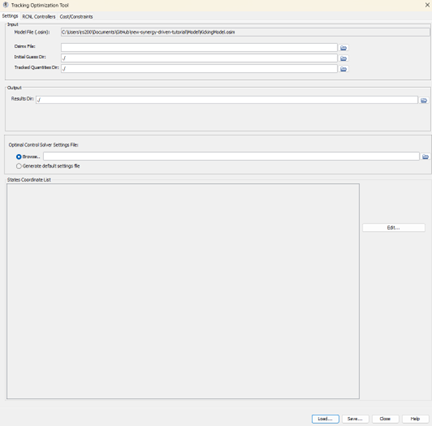
Set the Osimx file to by
ncpResults\KickingModel_ncp.osimx.Set the initial guess directory to be
ncpResultsinfoThe initial guess directory is where TO will parse the synergy initial guess from.
Set the tracked quantities directory to be
preprocessedSet the results directory to be
SynergyTOResultsV1Set the optimal control solver settings file to be
gpopsSettings.xmlUnder states coordinate list, select
hip_flexion_r, knee_angle_r, ankle_angle_rClick to the RCNL Controllers tab at the top.
Under RCNL Synergy Controller, add
hip_flexion_r, hip_adduction_r, hip_rotation_r, knee_angle_r, ankle_angle_r, subtalar_angle_rto the coordinate list.noteNot all of these coordinates are in the states. The coordinate list in the synergy controller dictates the coordinates that are used to fit the surrogate model. Therefore, we need to include all of the right leg coordinates to accurately model the muscle kinematics.
Do not check optimize synergy vectors
Set the surrogate model data directory to be
surrogateData.Click to the Cost/Constraints tab at the top.
a. We will start by using the same set of cost terms and constraints as we had in our Torque Driven TO in tutorial 7 with some changes to max allowable errors, and add an additional cost term to track muscle activations.
Cost terms:
a. Add a new cost term:
- Name: Coordinate tracking
- Cost term type: generalized_coordinate_tracking
- Component list: hip_flexion_r knee_angle_r ankle_angle_r
- Max allowable error: 0.0873
b. Add a new cost term:
- Name: Speed tracking
- Cost term type: generalized_speed_tracking
- Component list: hip_flexion_r knee_angle_r ankle_angle_r
- Max allowable error: 0.873
c. Add a new cost term:
- Name: Load tracking
- Cost term type: inverse_dynamics_load_tracking
- Component list: hip_flexion_r_moment knee_angle_r_moment ankle_angle_r_moment
- Max allowable error: 50
d. Add a new cost term:
- Name: Muscle activation tracking
- Cost term type: muscle_activation_tracking
- Component list: bflh_r bfsh_r gasmed_r glmax2_r iliacus_r recfem_r soleus_r tibant_r vasmed_r
- Max allowable error: 0.1
Constraint terms:
a. Add a new constraint term:
- Name: Kinetic consistency
- Constraint term type: kinetic_consistency
- Component list: hip_flexion_r_moment knee_angle_r_moment ankle_angle_r_moment
- Max error: 0.1
- Min error: -0.1
Save this settings file as
SynergyTOSettingsV1.xmlOpen the settings file in a text editor of your choice and explore it.
Change the
<trial_name>field to be drive_kick1Underneath the
<trial_name>field, copy and paste the lines:<load_surrogate_model>true</load_surrogate_model>
<save_surrogate_model>false</save_surrogate_model>infoThe above lines will load a pre-fitted surrogate model to save on computation time.
Running Tracking Optimization:
Open MATLAB and open runTOTool.m in your tutorial directory.
Open the project file (Project.prj inside your installation of nmsm-core.)
Run the MATLAB section labelled Run Synergy TO V1
Post TO analysis:
The script will create 6 plots for you:
Plot 1 – Joint Angles: Joint angles for all model coordinates (including prescribed) as output by the TO run.
Plot 2 – Joint Velocities: Joint velocities for all states coordinates.
Plot 3 – Joint Loads: Joint loads for all model coordinates.
Plot 4 – Synergy Controls: Synergy controls for all synergy sets used in the optimization
Plot 5 – Synergy Weights: Corresponding synergy weights for the synergy commands.
Plot 6 – Muscle Activations: Muscle activations as created by the synergy controls.
These plots are a valuable way to analyze the results of the TO run. RMSE values between the tracked data and the TO results are reported for every plot where applicable.
It is also valuable to visualize the motion in the OpenSim GUI
a. With the model selected in OpenSim, load the newly created IK motion in your TO results directory. Ensure the motion looks as close to the experimental motion as possible.
Getting a good TO run is very hard and often requires additional iteration after the first attempt. It is recommended to add/remove cost terms if you believe the problem would benefit, or change max allowable errors for cost terms to “nudge” the solution in a desired direction.
Optimize synergy vector weights:
Open
SynergyTOSettingsV1.xmlin a text editor.Inside your
<RCNLSynergyController>, copy and paste:<optimize_synergy_vectors>false</optimize_synergy_vectors>
<synergy_vector_normalization_method>sum</synergy_vector_normalization_method>
<synergy_vector_normalization_value>1</synergy_vector_normalization_value>
<maximum_allowable_synergy_activation>2</maximum_allowable_synergy_activation>Create four copies of
SynergyTOSettingsV1.xmland rename themSynergyTOSettingsV2.xml,SynergyTOSettingsV3.xml,SynergyTOSettingsV4.xml,SynergyTOSettingsV5.xml.Configure your settings files as follows:
SynergyTOSettingsV2.xml:
<results_directory>SynergyTOResultsV2</results_directory>
<optimize_synergy_vectors>false</optimize_synergy_vectors>
<synergy_vector_normalization_method>sum</synergy_vector_normalization_method>
<synergy_vector_normalization_value>1</synergy_vector_normalization_value>
<maximum_allowable_synergy_activation>10</maximum_allowable_synergy_activation>SynergyTOSettingsV3.xml:
<results_directory>SynergyTOResultsV3</results_directory>
<optimize_synergy_vectors>false</optimize_synergy_vectors>
<synergy_vector_normalization_method>sum</synergy_vector_normalization_method>
<synergy_vector_normalization_value>1</synergy_vector_normalization_value>
<maximum_allowable_synergy_activation>2</maximum_allowable_synergy_activation>SynergyTOSettingsV4.xml:
<results_directory>SynergyTOResultsV4</results_directory>

<optimize_synergy_vectors>true</optimize_synergy_vectors>
<synergy_vector_normalization_method>sum</synergy_vector_normalization_method>
<synergy_vector_normalization_value>1</synergy_vector_normalization_value>
<maximum_allowable_synergy_activation>2</maximum_allowable_synergy_activation>
SynergyTOSettingsV5.xml:
<results_directory>SynergyTOResultsV5</results_directory>

<optimize_synergy_vectors>true</optimize_synergy_vectors>
<synergy_vector_normalization_method>magnitude</synergy_vector_normalization_method>
<synergy_vector_normalization_value>1</synergy_vector_normalization_value>
<maximum_allowable_synergy_activation>2</maximum_allowable_synergy_activation>
Run the corresponding sections in MATLAB.
Post TO Analysis:
- While all runs produced good tracking quality,
SynergyTOSettingsV3.xmlmostly had the lowest RMSE of all the runs, therefore we will use that as our TO solution moving forwards.
Section 2: Verification Optimization
The Synergy Driven VO settings file is very similar to the Torque Driven VO settings file with the only difference being that we are now tracking synergy controls instead of torque controls.
Just like with the Torque Driven tutorial, we will do two separate VO runs. A “sanity check” run, and a “dry run” run.
Creating a Verification Optimization settings file:
Activate the NMSM GUI in OpenSim by navigating to Tools>User Plugins, and click
rcnlPlugin.dllWith
KickingModel.osimselected in the OpenSim GUI, go to Tools>Treatment Optimization>Verification OptimizationSet the Osimx file to
ncpResults\KickingModel_ncp.osimx.Set the initial guess directory to
SynergyTOResultsV3Set the tracked quantities directory to
SynergyTOResultsV3Set the results directory to
SynergyVOResultsV1Set the optimal control solver settings file to
gpopsSettings.xmlUnder states coordinate list, select
hip_flexion_r, knee_angle_r, ankle_angle_rClick to the RCNL Controllers tab at the top.
Under RCNL Synergy Controller, add
hip_flexion_r, hip_flexion_r, hip_rotation_r, knee_angle_r, ankle_angle_r, subtalar_angle_rto the coordinate list.Set the surrogate model data directory to
surrogateData.Click to the Cost/Constraints tab at the top.
Cost terms:
a. Add a new cost term:
- Name: Controller tracking
- Cost term type: controller_tracking
- Component list: RightLeg_1 RightLeg_2 RightLeg_3 RightLeg_4
- Max allowable error: 1
Constraint terms:
a. Add a new constraint term:
- Name: Kinetic consistency
- Constraint term type: kinetic_consistency
- Component list: hip_flexion_r_moment knee_angle_r_moment ankle_angle_r_moment
- Max error: 0.1
- Min error: -0.1
Save this settings file as
SynergyVOSettingsV1.xmlOpen
SynergyVOSettings.xmlin a text editor of your choiceChange the
<trial_name>field to be drive_kick1Underneath the
<trial_name>field, copy and paste the lines:<load_surrogate_model>true</load_surrogate_model>
<save_surrogate_model>false</save_surrogate_model>Inside your
<RCNLSynergyController>, copy and paste:<optimize_synergy_vectors>false</optimize_synergy_vectors>
<synergy_vector_normalization_method>sum</synergy_vector_normalization_method>
<synergy_vector_normalization_value>1</synergy_vector_normalization_value>
<maximum_allowable_synergy_activation>2</maximum_allowable_synergy_activation>
Running Verification Optimization:
Open MATLAB and open runVOTool.m in your tutorial directory.
Open the project file (Project.prj inside your installation of nmsm-core.)
Run the MATLAB section labeled Run Synergy VO V1.
Post VO Analysis:
If everything was done correctly, this optimization should converge quickly.
The same plots as in TO will be generated automatically, and the red and blue lines should be near identical.
Adding new constraints into VO:
The next step is to add constraints on top of our previous VO run to ensure that the constraints are consistent with your problem formulation. These settings files will be nearly identical to the Torque Driven VO settings files, so you can create a copy of SynergyVOSettingsV1.xml and copy and paste your <RCNLConstraintTermSet> from the Torque Driven DO V3 settings file into this settings file to save time. Remember to change your <results_directory> to SynergyVOResultsV2.
If copy and pasting, skip to bullet point 6.
If doing this through the GUI:
Load
SynergyVOSettingsV1.xmlinto the VO NMSM OpenSim GUI.Set
<results_directory>asSynergyVOResultsV2Click to the Cost/Constraints tab at the top.
Constraint terms:
a. Add a new constraint term:
i.  Name: Initial coordinate position deviation
ii. Constraint term type: initial_generalized_coordinate_deviation
iii.    Component list: (hip_flexion_r knee_angle_r ankle_angle_r)
iv. Max error: 0.0175
v.  Min error: -0.0175
b. Add a new constraint term:
i.  Name: Initial coordinate speed deviation
ii. Constraint term type: initial_generalized_speed_deviation
iii.    Component list: (hip_flexion_r knee_angle_r ankle_angle_r)
iv. Max error: 0.175
v.  Min error: -0.175
c. Add a new constraint term:
i.  Name: Final toe marker position deviation
ii. Constraint term type: final_marker_position_deviation
iii.    Component list: (R_Toe)
iv. Max error: 0.001
v.  Min error: -0.001
d. Add a new constraint term:
i.  Name: Final calcaneus orientation deviation
ii. Constraint term type: final_body_orientation_deviation
iii.    Component list: (calcn_r)
iv. Max error: 0.0175
v.  Min error: -0.0175
e. Add a new constraint term:
i.  Name: Toe marker final velocity
ii. Constraint term type: final_marker_velocity_value
iii.    Component list: (R_Toe)
iv. Max error: 13.2
v.  Min error: 13.1
f. Add a new constraint term:
i.  Name: Limit ankle position
ii. Constraint term type: generalized_coordinate_value
iii.    Component list: (ankle_angle_r)
iv. Max error: 0.0475
v.  Min error: -0.3187
g. Add a new constraint term:
i.  Name: Limit ankle velocity
ii. Constraint term type: generalized_speed_deviation
iii.    Component list: (ankle_angle_r)
iv. Max error: 0.175
v.  Min error: -0.175
Save this settings file as
SynergyVOSettingsV2.xmlOpen
SynergyVOSettingsV2.xmlin a text editor.Inside your
<RCNLConstraintTerm>for Toe marker final velocity, change<axes>to only include X, and ensure that<max_error>is 13.2 and<min_error>is 13.1It is very important that <axes>only includes 'x', or your VO will not converge.Run the MATLAB section labeled
Run Synergy Driven VO V2.To compare both VO results to the previous TO results, run the MATLAB section labeled
Compare Results. Both solutions should be near identical to the TO results.
Section 3: Design Optimization
With VO completed, we are now satisfied with our solution and can move forward with designing a better kick motion just like we did with the Torque Driven problem. As with the above sections, the problem formulation will be very similar to how we did the Torque Driven DO runs.
Creating a Design Optimization settings file:
Activate the NMSM GUI in OpenSim by navigating to Tools>User Plugins, and click
rcnlPlugin.dllWith
KickingModel.osimselected in the OpenSim GUI, go to Tools>Treatment Optimization>Design OptimizationSet the Osimx file to
ncpResults\KickingModel_ncp.osimx.Set the initial guess directory to
SynergyVOResultsV2Set the tracked quantities directory to
SynergyVOResultsV2Set the results directory to
SynergyDOResultsV1Set the optimal control solver settings file to
gpopsSettings.xmlUnder states coordinate list, select
hip_flexion_r, knee_angle_r, ankle_angle_rClick to the RCNL Controllers tab at the top.
Under RCNL Synergy Controller, add
hip_flexion_r, hip_flexion_r, hip_rotation_r, knee_angle_r, ankle_angle_r, subtalar_angle_rto the coordinate list.Set the surrogate model data directory to
surrogateData.Click to the Cost/Constraints tab at the top.
a. The below steps are using the same cost terms and constraints as in SynergyVOSettingsV2.xml. To save time, you may save the settings file right now as SynergyDOSettingsV1.xml and copy the <RCNLCostTermSet> and <RCNLConstraintTermSet> from SynergyVOSettingsV2.xml over to SynergyDOSettingsV1.xml.
b. If copy and pasting, skip to bullet point 16.
Cost terms:
a. Add a new cost term:
- Name: Controller tracking
- Cost term type: controller_tracking
- Component list: RightLeg_1 RightLeg_2 RightLeg_3 RightLeg_4
- Max allowable error: 1
Constraint terms:
a. Add a new constraint term:
- Name: Kinetic consistency
- Constraint term type: kinetic_consistency
- Component list: hip_flexion_r_moment knee_angle_r_moment ankle_angle_r_moment
- Max error: 0.1
- Min error: -0.1
b. Add a new constraint term:
- Name: Initial coordinate position deviation
- Constraint term type: initial_generalized_coordinate_deviation
- Component list: hip_flexion_r knee_angle_r ankle_angle_r
- Max error: 0.0175
- Min error: -0.0175
c. Add a new constraint term:
- Name: Initial coordinate speed deviation
- Constraint term type: initial_generalized_speed_deviation
- Component list: hip_flexion_r knee_angle_r ankle_angle_r
- Max error: 0.175
- Min error: -0.175
d. Add a new constraint term:
- Name: Final toe marker position deviation
- Constraint term type: final_marker_position_deviation
- Component list: R_Toe
- Max error: 0.001
- Min error: -0.001
e. Add a new constraint term:
- Name: Final calcaneus orientation deviation
- Constraint term type: final_body_orientation_deviation
- Component list: calcn_r
- Max error: 0.0175
- Min error: -0.0175
f. Add a new constraint term:
- Name: Toe marker final velocity
- Constraint term type: final_marker_velocity_value
- Component list: R_Toe
- Max error: 14.4
- Min error: 14.3
g. Add a new constraint term:
- Name: Limit ankle position
- Constraint term type: generalized_coordinate_value
- Component list: ankle_angle_r
- Max error: 0.0475
- Min error: -0.3187
h. Add a new constraint term:
- Name: Limit ankle velocity
- Constraint term type: generalized_speed_deviation
- Component list: ankle_angle_r
- Max error: 0.175
- Min error: -0.175
Save this settings file as SynergyDOSettingsV1.xml
Change the
<trial_name>field to be drive_kick1Underneath the
<trial_name>field, copy and paste:<load_surrogate_model>true</load_surrogate_model>
<save_surrogate_model>false</save_surrogate_model>Underneath the
<trial_name>field, copy and paste:<final_time_range>0.26 0.36</final_time_range>Inside your
<RCNLSynergyController>, copy and paste:<optimize_synergy_vectors>false</optimize_synergy_vectors>
<synergy_vector_normalization_method>sum</synergy_vector_normalization_method>
<synergy_vector_normalization_value>1</synergy_vector_normalization_value>
<maximum_allowable_synergy_activation>2</maximum_allowable_synergy_activation>Inside your
<RCNLConstraintTerm>for Toe marker final velocity, change<axes>to only includeX, and change the<max_error>to 14.4 and<min_error>to 14.3 if not already done.It is very important that <axes>only includes 'x', or your VO will not converge.
Running Design Optimization:
Open MATLAB and open
runDOTool.min your tutorial directory.Open the project file
Project.prjinside your installation ofnmsm-core.Run the MATLAB section labelled
Run Synergy DO V1.
User Designed Cost Functions:
To compare to our Torque Driven solutions from the previous tutorial, we will run a Synergy Driven DO with the same user defined cost function as before.
Create a copy of
SynergyDOSettingsV1.xmland name itSynergyDOSettingsV2.xmlOpen
SynergyDOSettingsV2.xmlin a text editor of your choiceChange
<results_directory>toSynergyDOResultsV2Inside your
<RCNLCostTermSet>, copy and paste:<RCNLCostTerm name="User defined" >
<type>user_defined</type>
<function_name>footSpeedCost</function_name>
<cost_term_type>discrete</cost_term_type>
<is_enabled>true</is_enabled>
<marker_name>R_Toe</marker_name>
<target_speed>14.35</target_speed>
</RCNLCostTerm>Inside your
<RCNLConstraintTerm>for Toe marker final velocity, set<is_enabled>tofalseRun the MATLAB section labelled
Run Synergy DO V2.
Post DO Analysis:
At the bottom of the runDOTool.m, there are two sections for plotting results. The first section Compare Synergy Driven Results compares the two Synergy Driven DO results we did. These solutions should be very similar to each other. The second section Compare to Torque Driven Results compares the Synergy Driven to the Torque Driven results (both using user defined cost functions). These results will look slightly different because of the different controllers used. However, both results should follow the same general trends. Experiment with different numbers of synergies:
If desired, you may run NCP again with a different number of synergies, and re-run Synergy Driven TO, VO, and DO with this new NCP results directory.
To do this, open NCPSettings.xml and edit the <num_synergies> field in <RCNLSynergySet>. Next, open RunNCP.m and run the script. This will overwrite what you have in ncpResults, and you can then modify and re-run the Treatment Optimization settings files you created.